STEP 1
Download & Launch
Download the portable standalone Pen 11.exe (38.6 MB). Double-click to launch immediately—runs 100% locally with zero background services.
 Pen 11
The fastest way to draw on screen in Windows 11—an open-source screen drawing tool with zero input lag. Hardware-accelerated Direct3D 11 inking, 60 FPS fluid animation engine, Smart Vector Objects with OBB rotation, persistent settings storage, and near 0% idle CPU usage. Completely free and open-source.
No installers, no setup wizards, no registry modifications, and zero administrator privileges required.
Download the portable standalone Pen 11.exe (38.6 MB). Double-click to launch immediately—runs 100% locally with zero background services.
Switch seamlessly between the primary desktop pen tool (Ctrl+1) and translucent screen highlighter (Ctrl+2). Annotate, sketch, or highlight directly over PowerPoint slides, code editors, or browser tabs with zero window focus stealing and Direct3D 11 sub-millisecond response.
Press Ctrl+5 to toggle ink visibility and glide the toolbar into an unobtrusive pill handle. Press Ctrl+Shift+C to wipe all annotations clean instantly.
Modular, floating translucent UI panels that adapt to your screen without stealing window focus or cluttering presentations.
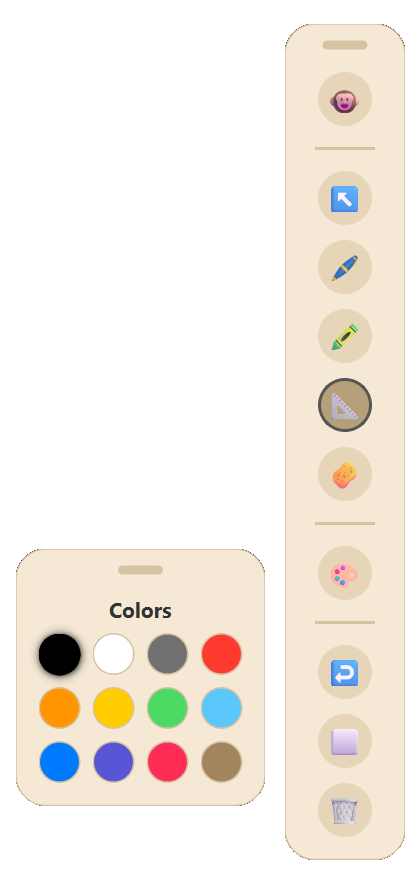
12 high-contrast curated swatches with instant stroke-width adjustments, non-blocking opacity fades, and auto-persistence to disk.
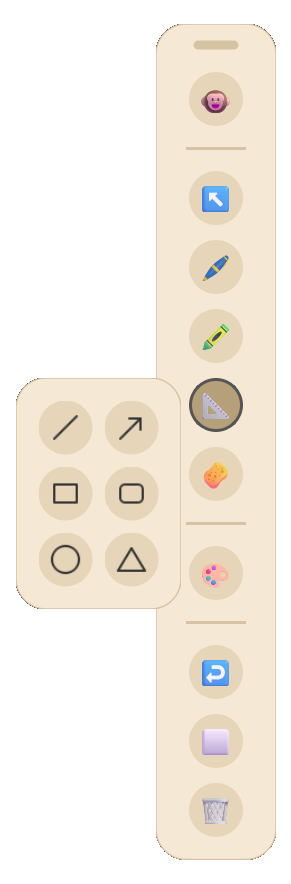
Lines, Arrows, Rectangles, Rounded Rectangles, Ellipses, and Triangles with 45° angle snapping and 400ms gesture recognition.
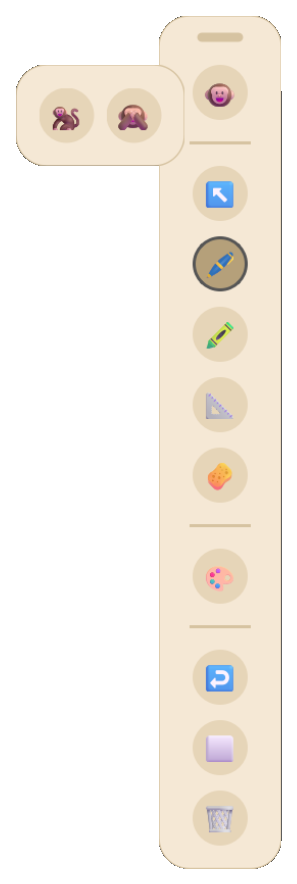
Instantly switch between Active Ink (🐵), Cursor Pass-Through (🐒), and smooth 240ms cubic-bezier minimal pill collapse (🙈).
Every component in Pen 11 is built from the ground up to respect your hardware and streamline screen annotations—powered by our primary desktop pen tool (Ctrl+1), translucent screen highlighter (Ctrl+2), and smart vector acceleration.
Direct3D 11 native swapchain combined with QPropertyAnimation (InOutCubic 240ms) delivers seamless toolbar collapse/expand morphing and non-blocking InOutSine opacity fades with zero visual stutter or layout fighting.
Color Palette, Shapes Menu, and Cursor Toolbars function as modular floating panels. Attached panels glide seamlessly during drag, and remember customized screen coordinates independently.
Procedural high-DPI tool cursors and instant button tooltips update at 120Hz without stealing OS window focus from Word, web browsers, or presentation slide decks.
Pure vector strokes track their Oriented Bounding Box geometry during centroid rotation, scaling, and dragging. Hold for 400ms to auto-snap strokes into perfect geometric shapes.
StorageManager auto-saves custom tool sizes, active swatches, and coordinates to disk. Local IPC socket locks ensure a single instance runs with zero hotkey conflicts.
Draw infinitely with confidence. Pen 11 handles up to 50,000 simultaneous on-screen strokes with a massive 5,000-step memory-capped Undo history, zero raster degradation, and 0.0% background idle CPU usage.
Whether you are teaching a classroom, conducting code reviews, or delivering a keynote, Pen 11 adapts effortlessly as a versatile whiteboard overlay for Windows and presentation drawing tool.
Annotate PowerPoint slides, digital textbooks, PDFs, and virtual classroom calls in real-time. Switch to Whiteboard / Blackboard mode (Ctrl+B) for step-by-step math derivations, cursive handwriting, and diagram sketches with full stylus pressure sensitivity.
Highlight code during pull request reviews, sketch architecture and data-flow diagrams during live pair programming, and circle bugs directly over running software without losing IDE focus. Group, rotate, and scale strokes with pure vector Oriented Bounding Box (OBB) selection.
Guide audience focus during webinars and software demos using high-contrast translucent highlighters, auto-snapped arrows, and callouts. Collapse the toolbar to an unobtrusive pill (Ctrl+5) when recording clean screencasts or sharing screens on Zoom, Teams, and OBS.
Side-by-side performance analysis on Windows 11 Desktop Window Manager (DWM).
vs ~380 MB on Electron tools (87% less RAM)
Event loop fully paused when not drawing
Direct3D 11 sub-millisecond dirty-rect blit
Standalone portable executable. Zero install.
Looking for a free Epic Pen alternative or modern gInk alternative? Pen 11 offers all Pro features completely free. See how Pen 11 delivers modern engineering, stylus fidelity, and 60 FPS performance without paywalls or bloat.
| Feature |
🖊️
Pen 11 (MIT)
Our App
|
✏️
Epic Pen Free
|
🖋️
gInk
|
|---|---|---|---|
| Price & License | 100% Free & Open Source (MIT) | Free (Crippled) / $25+ Pro Paywall | Free & Open Source (GPL) |
| UI & Design System | Modern Windows 11 Fluent / M3 Pill UI with 60 FPS cubic animations | Outdated legacy Win32 UI, rigid window frame | Barebones WinForms / GDI+ UI |
| Pen Tablet & Stylus | Native pressure sensitivity & auto stylus eraser flip (tabletEvent) |
Stylus pressure locked behind paid Pro | Basic Wintab/stylus support, no auto-eraser flip |
| Rendering Architecture | Two-Layer Backing Cache (O(1) GPU blit) — 50k+ strokes @ 60 FPS | O(N) redraw loop; stutters under heavy drawing | GDI+ CPU redraw loop; noticeable lag on dense drawings |
| Vector Selection & Lasso | Oriented Bounding Box (OBB): drag, rotate, scale, and delete | None in Free version (basic moves in Pro) | None (bitmap-style clear/undo only) |
| Geometric Auto-Snap | Hold 400ms for instant geometric snapping (lines, circles, etc.) | Manual shapes locked behind paid Pro | Rudimentary shapes, no gesture detection |
| Edge & Taskbar Safety | Smart screen-edge detection (_smart_position) with auto-flip |
Basic dock snapping; frequently occluded by taskbar | Fixed positioning; can overflow display edges |
| Memory & Idle CPU | < 50 MB RAM, 0.0% idle CPU (Direct3D 11 hardware DWM) | 80–150 MB RAM, background helper services | ~40–60 MB RAM, software rasterized |
| Installation & Portability | 100% Portable single .exe (Zero registry clutter) |
Windows installer (.msi/.exe) required |
Portable zip |
| Interactive Web Companion | Live Web Sandbox Demo | None | None |
System-wide keyboard shortcuts that operate anywhere across Windows 11. Test them in real-time or search below.
| Action | Key Combination | Description |
|---|---|---|
| Select Pen Tool | Ctrl + 1 |
Activates smooth, pressure-sensitive vector pen nib for writing and sketching. |
| Select Highlighter Tool | Ctrl + 2 |
Switches to semi-transparent chisel marker with multiply blend mode. |
| Select Eraser Tool | Ctrl + 3 |
Erases strokes point-by-point or smart objects by proximity. |
| Select / Cursor Mode | Ctrl + 4 |
Enables cursor click-through mode, lasso circle-to-select, and OBB transformation. |
| Toggle Canvas Visibility | Ctrl + 5 |
Collapses toolbar to minimal pill (🙈) and temporarily hides ink without clearing. |
| Undo Last Action | Ctrl + Z |
Steps backward in the 5,000-step memory-safe undo stack. |
| Clear Screen | Ctrl + Shift + C |
Instantly wipes all drawings and strokes from the screen. |
| Toggle Color Palette | Ctrl + P |
Opens or closes the floating 12-color curated swatch toolbox. |
| Toggle Background Mode | Ctrl + B |
Cycles between Transparent Desktop, Whiteboard, and Blackboard. |
| Increase Nib Size | Ctrl + ] |
Increments active stroke nib thickness by +2px. |
| Decrease Nib Size | Ctrl + [ |
Decrements active stroke nib thickness by -2px. |
| Exit Pen 11 | Ctrl + Q |
Instantly closes and exits the Pen 11 application. |
| Delete Selected Objects | Delete + Backspace |
Removes all currently highlighted lasso selections from the screen. |
| Constrain Shapes & Angles | Shift + Drag |
Snaps line/arrow angles to 45°, rectangle/ellipse to 1:1, and triangle to 90° right angle. |
Completely open source and modular. Safe to inspect, modify, and compile on your own machine.
# 1. Clone repository
git clone https://github.com/Narayan6204/Pen-11.git
cd "Pen-11"

# 2. Install dependencies
pip install -r requirements.txt

# 3. Launch live Python application
python main.py

# 4. Compile optimized standalone executable
python -m PyInstaller "Pen 11.spec" --noconfirmFrameless Direct3D overlay, 60 FPS animations & event dispatcher.
Oriented Bounding Box geometry, rotation matrix & handle physics.
Modular floating panels with non-blocking InOutSine opacity fades.
Local IPC socket mutex guard preventing duplicate instances.
Atomic JSON persistence for tool sizes, swatches & coordinates.
50,000-stroke vector pipeline & 5,000-step memory-safe command stack.
Encountered an edge case, have an idea for a tool, or want to contribute? File a bug report or feature request directly on GitHub.
"While taking my NIELIT 'O Level' course, I found myself in need of a good screen annotation tool. However, I quickly realized that most existing options were either locked behind paywalls, bloated with unnecessary features, or suffered from laggy, outdated user interfaces.
Frustrated by these limitations, I decided to build my own solution using AI. The result is Pen 11—a blazing-fast, highly responsive, and meticulously optimized screen marker that respects your system's resources."
— Narayan Dev (Creator & Maintainer)
If Pen 11 helped you in your studies or teaching, buy me a coffee by scanning with any UPI app!
Everything you need to know about Pen 11 screen annotation, performance, and compatibility.
Pen 11 provides native, hardware-level support for any tablet or stylus compatible with Windows Ink / Wintab, including Wacom (Intuos, One, Cintiq), Huion, XP-Pen, Gaomon, and Microsoft Surface Pen. The app reads raw hardware pressure values via tabletEvent() for smooth, natural stroke tapering and automatically detects when you flip your stylus over (PointerType.Eraser) to erase without touching the toolbar.
Pen 11 is multi-monitor native: its drawing canvas spans your entire virtual desktop across all connected monitors, whether 1080p, 2K, 4K, or mixed DPI. Its smart positioning engine (_smart_position()) detects screen boundaries using QApplication.screenAt() and automatically flips flyout panels horizontally or vertically so palettes and menus never clip off-screen or slip under the Windows Taskbar.
Pen 11 is 100% portable: it does not write to the Windows Registry and does not install hidden background daemons. To uninstall, simply delete Pen 11.exe. If you also wish to clear your saved tool sizes and custom palette configurations, delete the settings folder at %APPDATA%\Pen11\.
Yes. Pen 11 creates a transparent, hardware-accelerated overlay with Windows non-activating flags (WS_EX_NOACTIVATE / Qt.WindowDoesNotAcceptFocus) so your active PowerPoint slide, PDF reader, browser, or screen share never loses focus while you annotate. For video games, running in Borderless Windowed mode allows Windows desktop overlays to render smoothly on top.
No. Unlike traditional tools that redraw every single vector point from scratch on every frame ($O(N)$), Pen 11 uses a Two-Layer Accelerated Backing Cache: completed strokes are permanently rasterized into a high-DPI Direct3D 11 off-screen buffer ($O(1)$). You can ink 50,000+ strokes without dropping below 60 FPS or experiencing stroke accumulation lag.
Yes, absolutely. Pen 11 is 100% free and open-source software distributed under the permissive MIT License. There are no paywalls, hidden subscriptions, ads, or tracking telemetry.
No installation required. Pen 11 is shipped as a standalone portable Pen.11.exe and compressed .ZIP archive. You can download and run it directly from your Downloads folder, Desktop, or USB drive without administrator privileges.
Unlike web/Electron-based tools that run heavy Chromium background loops, Pen 11 is built on native Direct3D 11 and Qt bindings. When you are not drawing, its event loop sleeps at 0.0% CPU and renders only modified dirty rects during active mouse/stylus strokes.